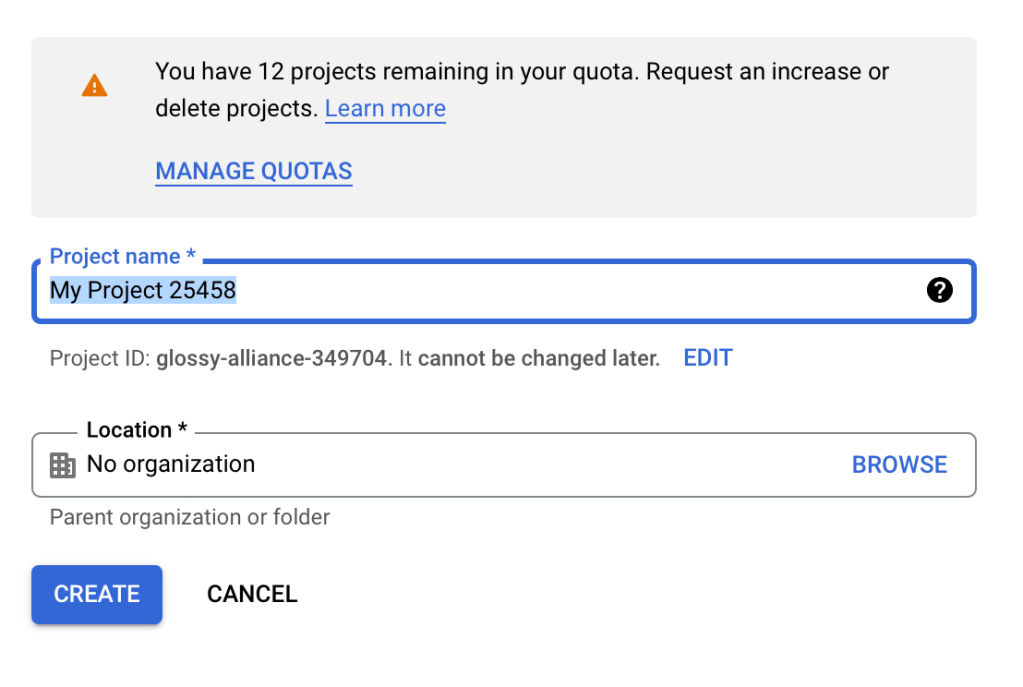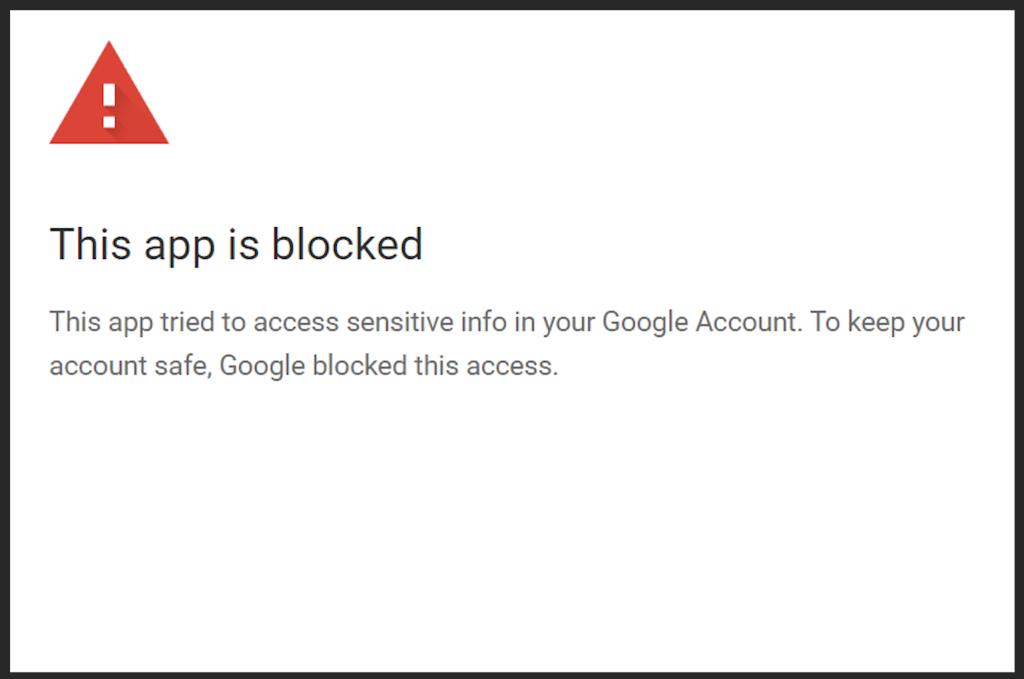
“This app is blocked” error on Google Apps Script [solution]

A common error when working with Google Apps Scripts

If you found this post, you have most likely gone through the ‘normal’ authentication process before. Otherwise, check out this great post on how to authorise Google Apps Scripts by Kieran Dixon.

The “This app is blocked” error is a little different, as there is no more buttons that we can click on to continue authorising this app.

In this post, we’ll be going through a quick workaround so that you can get back to running your scripts. Note that this issue is still not entirely resolved, but you can follow any developments in Google’s issue tracker.


Configuring your project on Google Cloud Platform

Firstly, open up your ‘Project Settings’ in the Apps Script manager:
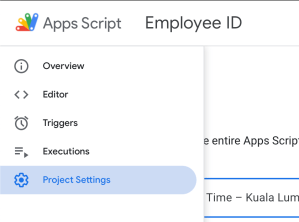
In your Apps Script manager, find the sidebar menu

Then, under the ‘Google Cloud Platform (GCP) Project’ section, click Change Project’. You should see the following screen:
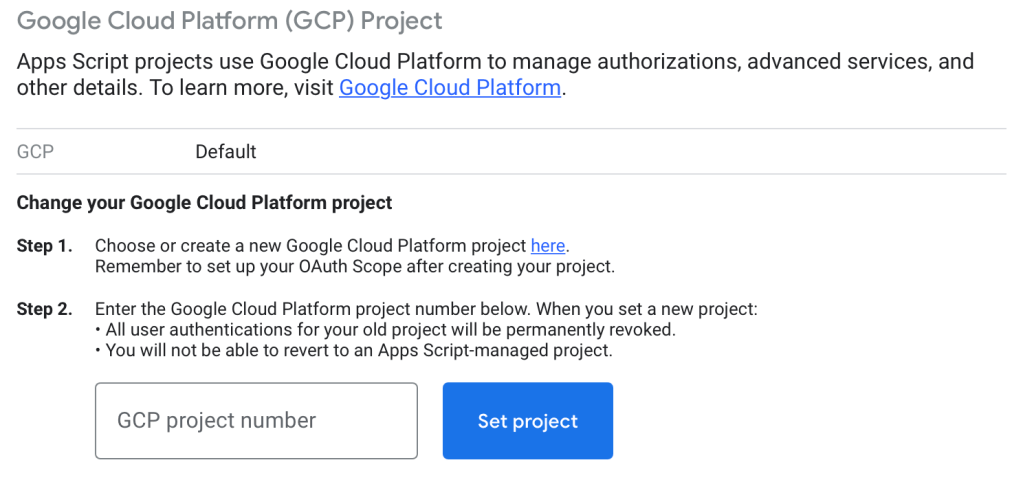
Click the link in step 1. You will be redirected to your free ‘Google Cloud Platform (GCP)’. Here, click the ‘Select a project’ dropdown and create a new project.
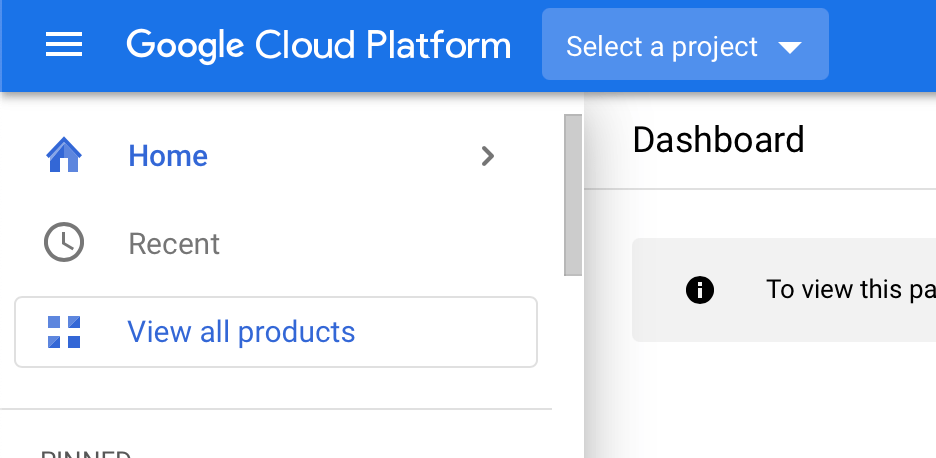
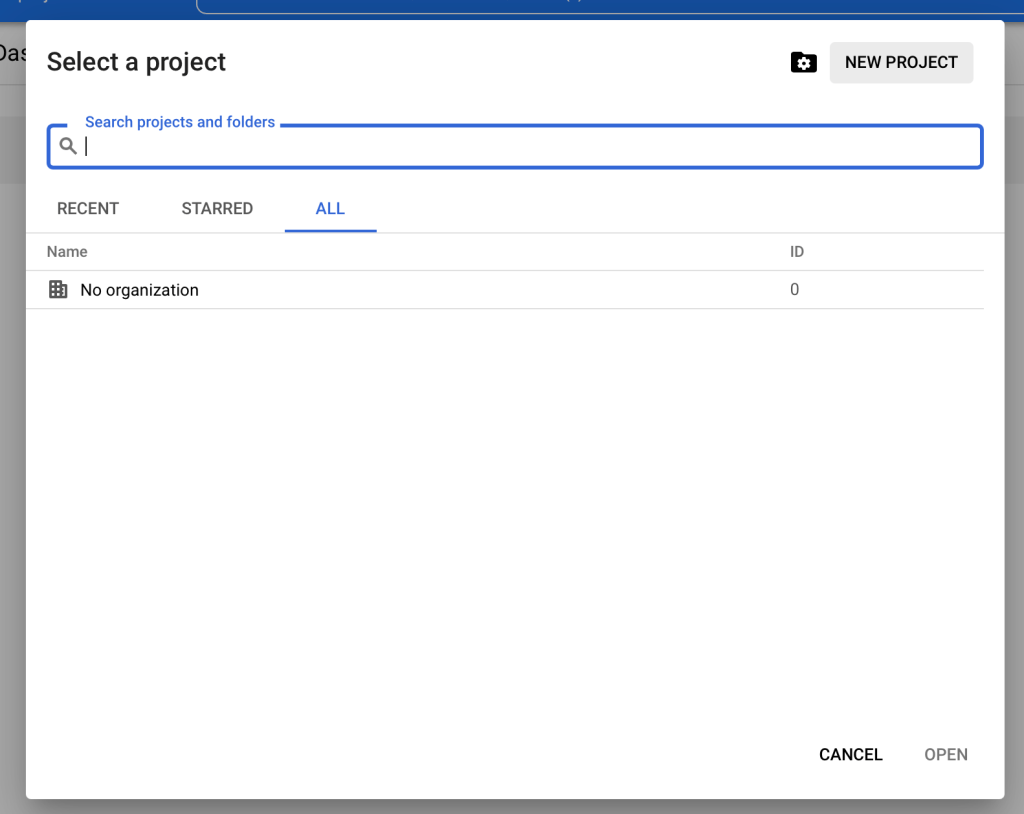
Menu dropdown in Google Cloud Platform
Create a new project using the button on the top right
Name for project. ‘Location’ field can be left blank

Then, go to the ‘OAuth Consent Screen’ on the sidebar menu.
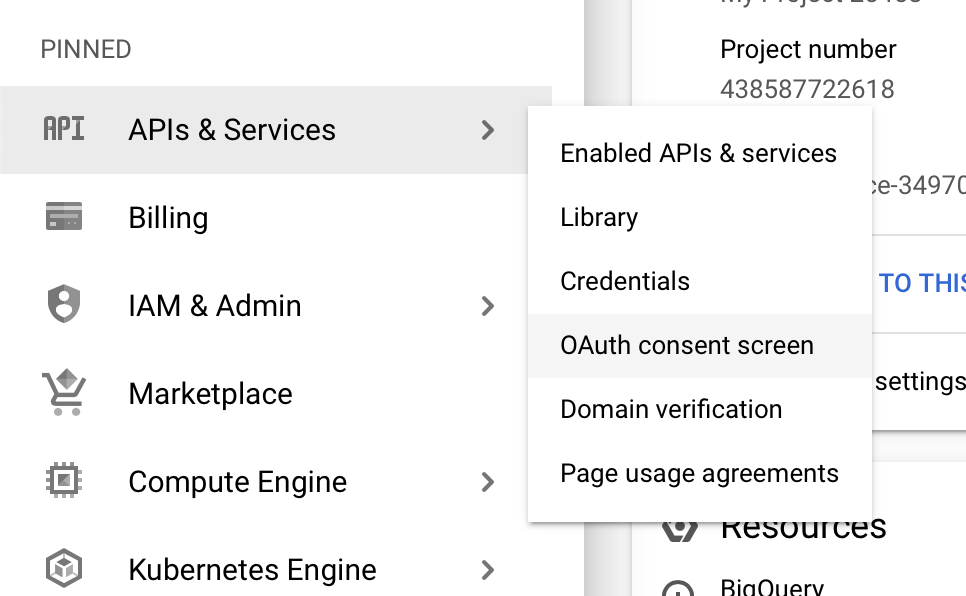
Under APIs & Services, click ‘OAuth consent screen’. If you don’t have the item pinned, you can search for ‘OAuth’ in the search bar

You now need to configure your project settings. For free Gmail accounts, select the ‘external’ user type:
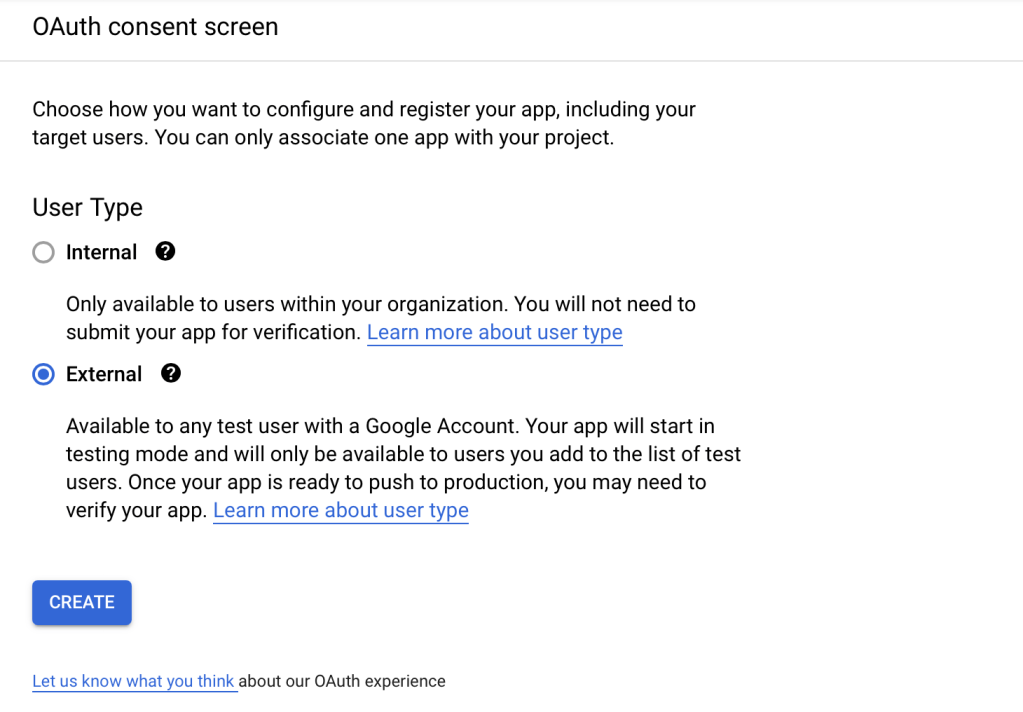
Configuring user type. Select ‘external’ for free Google accounts

Then, fill in any required fields. You can put the same email for both ‘User Support’ and ‘Developer’ email fields:
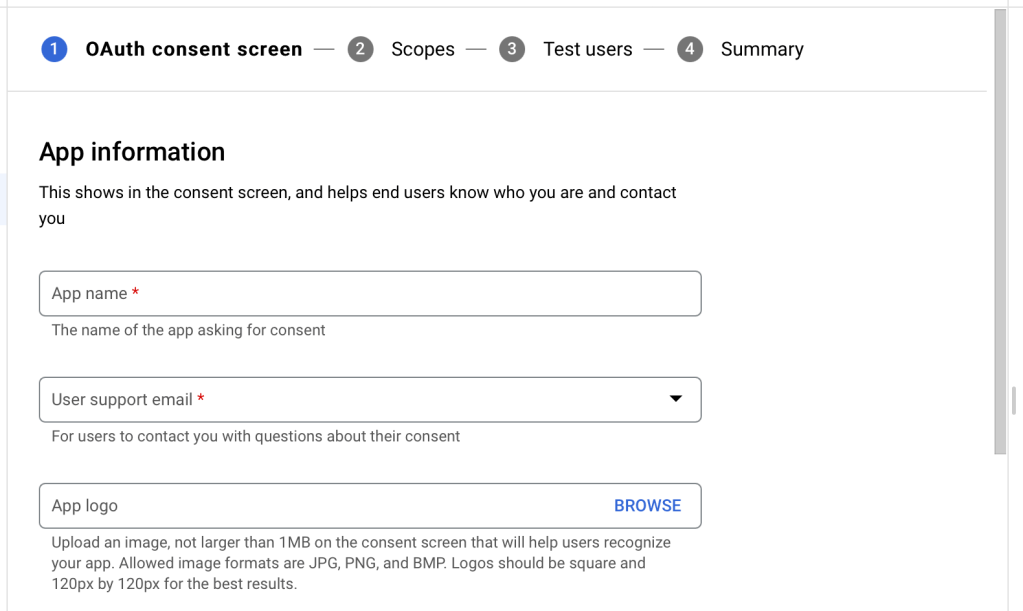
Configure your project name and email fields

In the next page, click ‘add or remove scopes’ . You will then see a list of scopes available for your project. If you know which scopes you are using, select the relevant items. Otherwise, you can select all the scopes.
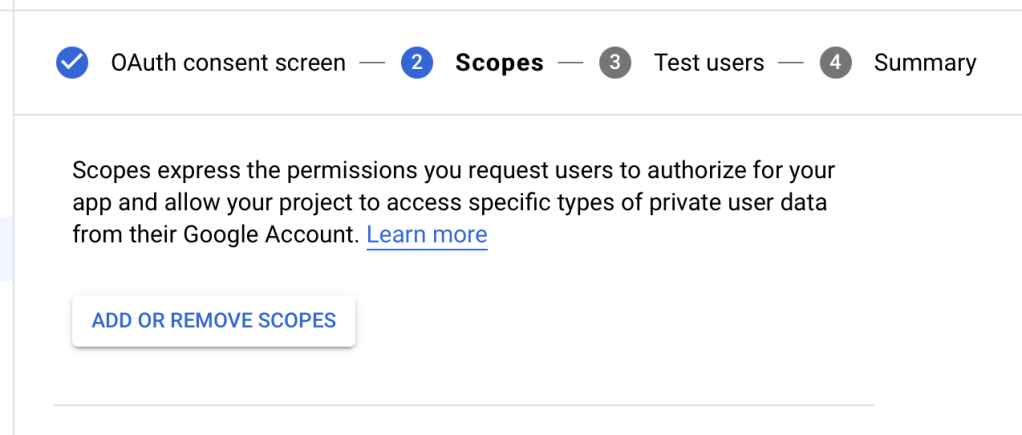
‘Add or Remove Scopes’ button
Select relevant scopes if known. Otherwise, you can select all available scopes.

Scroll down in the sidebar and click ‘Update’. Then, scroll to the bottom of the ‘Scopes’ section and click ‘Save and Continue‘.

Next, add the users who should be granted access to your Google Apps Script.
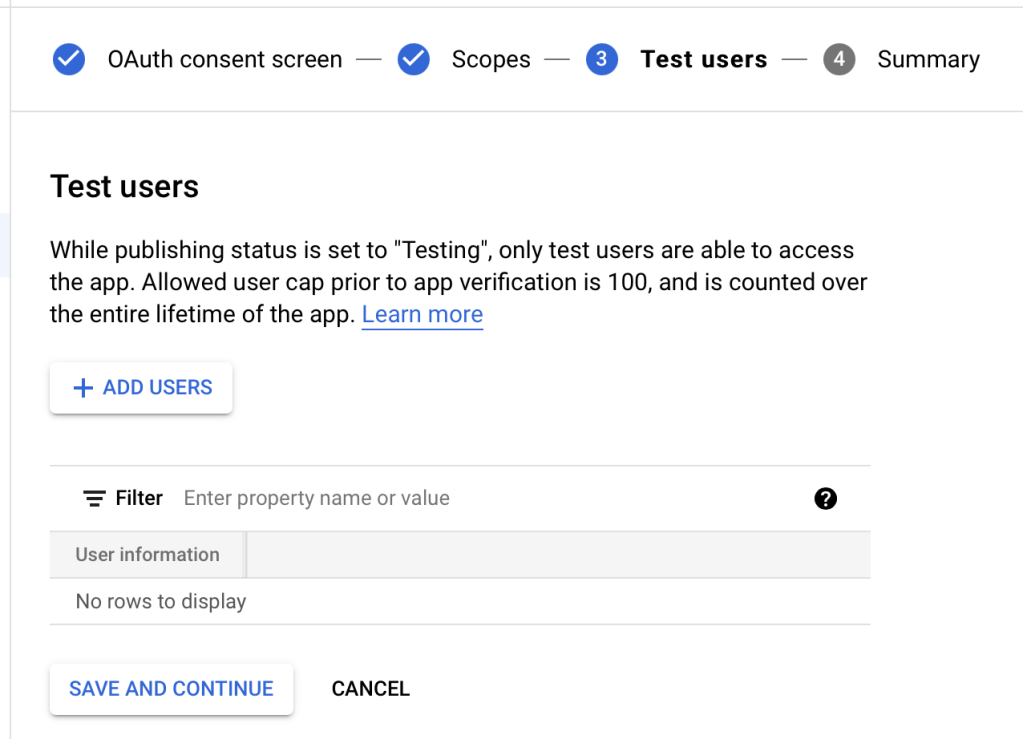
You can add up to 100 users for a project using this workaround.

After clicking ‘Save and Continue’, you can return to the main Google Cloud Platform page. Note that at this point, your project is still in ‘testing’. This means that you will be limited to the 100 user cap limit. However, as you don’t have to submit any verification applications to Google, you should be able to continue developing and testing your Google Apps Script.


Configuring your Google Apps Script project

After configuring the security settings, you should find your ‘Project Number’ in the Google Cloud Platform dashboard:
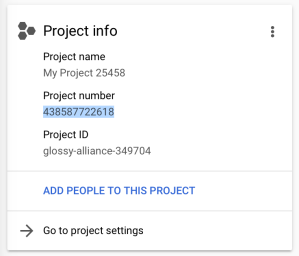
‘Project Info’ section in the Google Cloud Platform dashboard

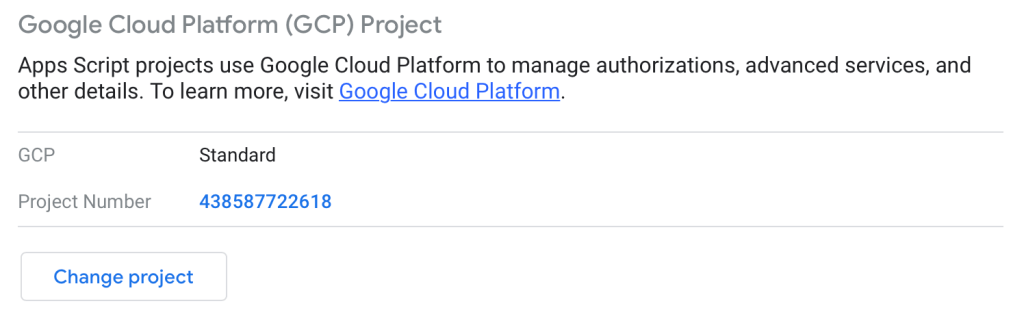
Copy the ‘Project Number’ into your Apps Script manager settings from above and click ‘Set project’. Your Apps Script project is now a ‘Standard’ GCP project under the ‘testing’ mode:
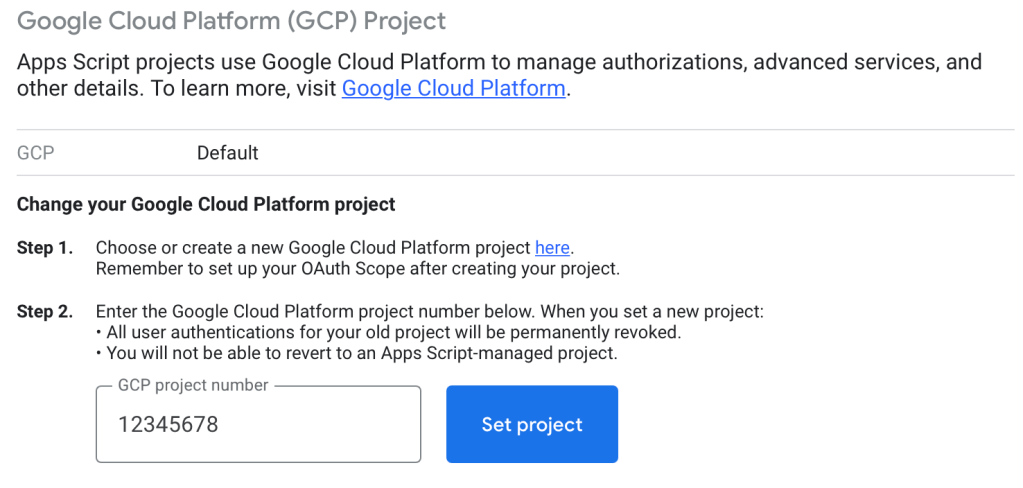
Add your project number and click ‘Set Project’
Apps Script project configured under Standard GCP Project

Running your Google Apps Script

You can now attempt to run your Apps Script. If the active user account has been added when we configured our users earlier, then you should see the following prompt:
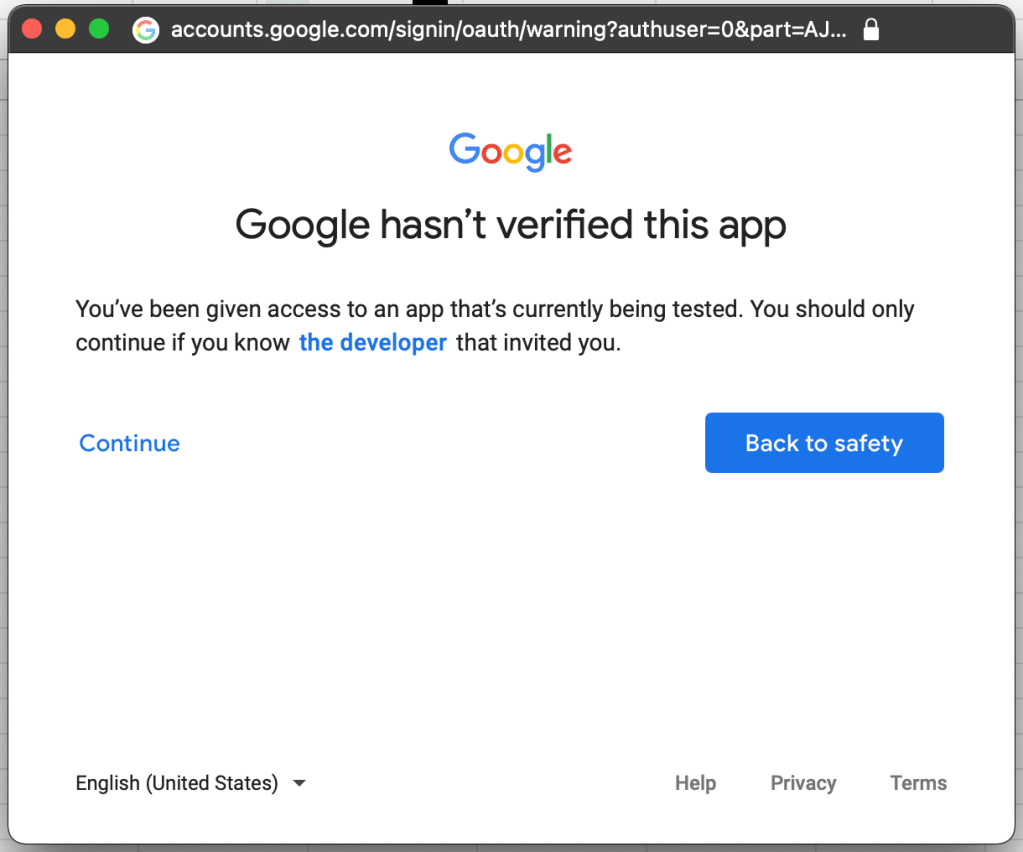
Google Apps Script prompt

Click ‘Continue’. You will then be able to authorise app permissions as before. If the active user hasn’t been added in the GCP project, you will see the following prompt:
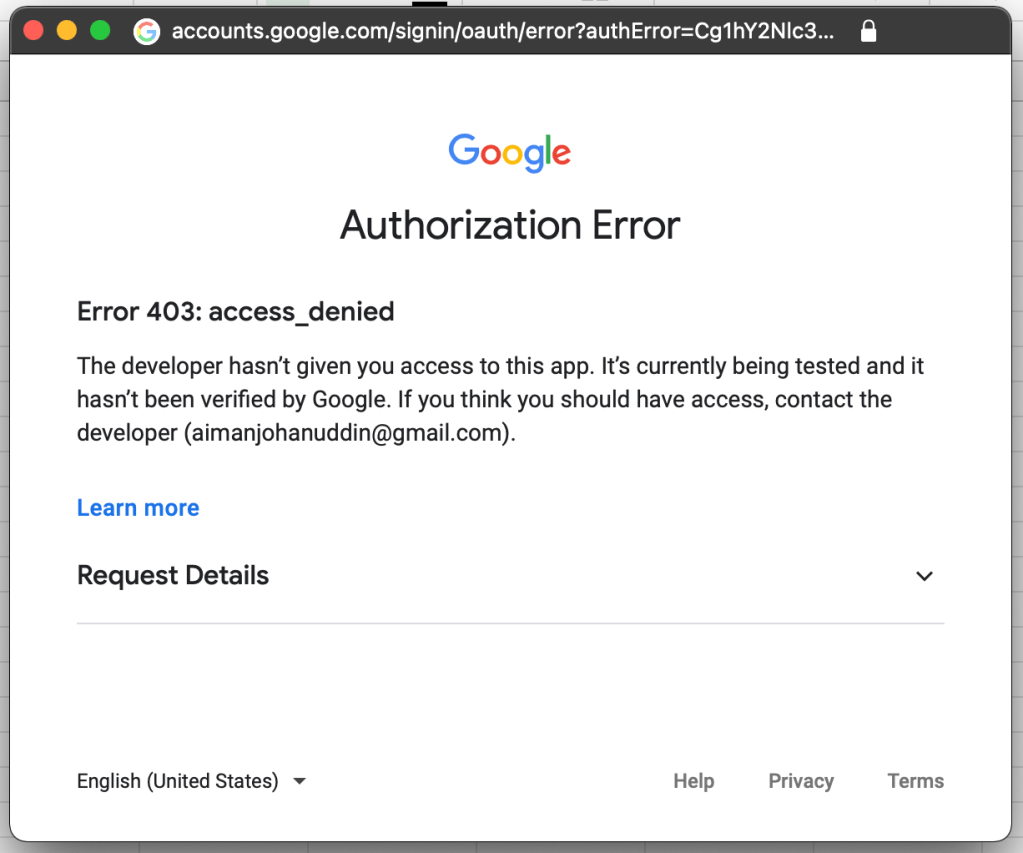
User authorisation error

To resolve this, ensure that the user Gmail account has been added to the OAuth consent screen for the project in Google Cloud Platform.


Notes

  • This solution will likely work for personal Gmail accounts. If your company has an enteprise subscription Google Workspace, it is better for you to contact your Admin to help resolve this error.
  • At the end of this solution, your project is still in ‘testing’. There are some limitations to this phase, which is why Google recommends you submit an application to verify your project if additional functionalities are required.

Hopefully you can get your Apps Script back up and running and continue developing as needed. Let me know in the comments if this has worked for you!

17 responses to ““This app is blocked” error on Google Apps Script [solution]”

  1. You are a hero, it works.

    Liked by 1 person

    1. Glad I could help! Hopefully Google comes up with a more permanent solution :/

      Like

  2. Andre Scholten avatar
    Andre Scholten

    You are a hero, it works again, finally.

    Like

  3. Aiman, my man, thanks a lot for this!

    Liked by 1 person

    1. It ain’t pretty but it works XD

      Liked by 1 person

  4. I already had gone through all of these steps EXCEPT adding all scopes (I had only added the scopes I thought I needed). Script will successfully run but once a week (for past couple of months) I have to reauthorize. Just now I added all scopes. Will this fix the once a week reauthorization issue? Have you heard of this?

    Liked by 1 person

    1. I haven’t seen this yet, Lara. Weird. Let us know how it goes.

      Liked by 1 person

      1. There are many people on the discussion in developer forum with same exact issue – a few have commented since I updated that discussion with this same reply. i’ll let you know what I learn.

        Liked by 2 people

  5. […] you get an error message, please check out blog post by Aiman Fikri for how to fix […]

    Liked by 1 person

  6. Great explanation. Images are also helpful. And most important this solution works. I don’t understand why google sometimes gives these (IMO) useless error messages. I would have never thought of going to the Google cloud platform and making these changes.

    Like

  7. You nailed it, thank you so much! You saved me hours of time.

    Like

  8. OMG, THANK YOU! Finally, a solution that works. I’ve been searching for months for an answer to this issue to no avail. It’s probably helped that I’ve become a bit more comfortable with Google Cloud Console over the past couple of months, but regardless, this solution works and that’s all that matters. Thank you again!

    Like

  9. This solution works for me, but every week i need to re-authorize it. Does that happen for others? Is there a way to make this work indefinitely?

    Like

    1. I haven’t experienced this personally, but another user had the same issue. No solutions yet unfortunately 😦

      Like

  10. Hell yes! This fixed it! One thing to note, when I installed the script, it gave me this error:

    `GoogleJsonResponseException: API call to calendar.calendarList.list failed with error: Google Calendar API has not been used in project 123456 before or it is disabled. Enable it by visiting https://console.developers.google.com/apis/api/calendar-json.googleapis.com/overview?project=123456 then retry.`

    I followed that link, enabled the Calendar API, and it started working.

    Thank you so much for your clear and comprehensive documentation.

    Like

  11. […] and you won’t see any option to grant authorization. If you encounter that message, follow these steps (permanent link) so you can authorize […]

    Like

  12. Exceptionally helpful – this works perfectly. Thanks so much.

    Like

Leave a reply to Edward B Cancel reply